How to Organize Airbnb Property Information: WiFi, Lock Codes, and Contacts
A practical system for organizing Airbnb property information — WiFi passwords, smart lock codes, cleaner contacts, and utilities — so any answer is seconds away.
Every Airbnb host knows the moment: a guest messages "what's the WiFi password?" while you're driving, at dinner, or asleep. The answer exists — somewhere. A note on your phone, a row in a spreadsheet, a text from your co-host eight months ago. The information isn't lost; it's just unfindable in the moment you need it.
Organizing Airbnb property information isn't about discipline. It's about having one system with three properties: a single home for every fact, structure that matches how you actually ask questions, and retrieval fast enough that you never go back to the group text.
Step 1: Inventory what you actually look up
Before choosing a tool, list the information you reach for repeatedly. For most hosts it falls into five buckets:
- Access — door codes, lockbox combos, smart lock master PINs, garage codes, alarm codes, key locations
- Connectivity — WiFi network names and passwords (guest and owner networks), router location, smart home hub logins
- People — cleaner, handyman, plumber, electrician, HVAC tech, neighbor who keeps an eye on the place
- Accounts — electric, gas, water, internet, trash, HOA, insurance policy numbers
- Property quirks — water shutoff location, breaker box notes, "jiggle the back door handle," seasonal maintenance reminders
Step 2: Give every fact exactly one home
Scattered information is dangerous because copies drift. The lock code changes, the spreadsheet gets updated, but the note on your phone doesn't — and three weeks later your cleaner is locked out. The fix is a single source of truth per property: when a value changes, it changes in one place, and everyone reads from that place.
Step 3: Organize for retrieval, not for storage
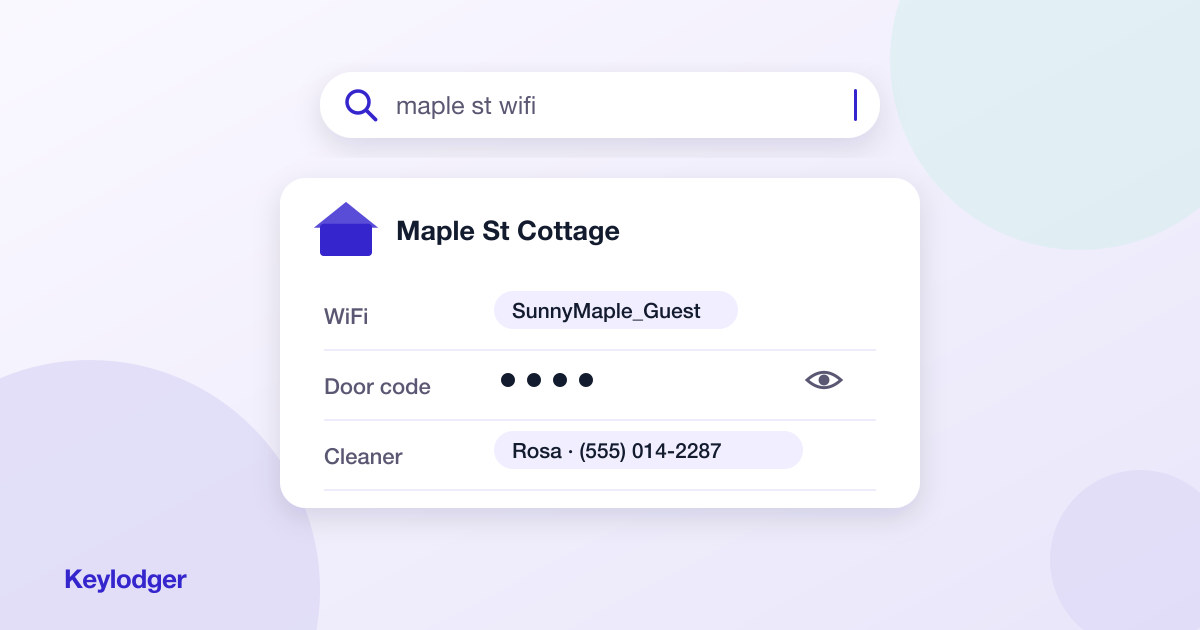
Most hosts organize information the way they store files — folders inside folders. But when a guest is waiting, you don't think in folders; you think in questions: "Maple St WiFi," "cleaner number," "alarm code beach house." A good system lets you type a fragment of the question and get the answer. This is why search beats navigation, and why a spreadsheet eventually breaks down once you pass two or three properties.
Step 4: Protect the sensitive stuff
Lock codes and alarm PINs shouldn't sit in plain text in a notes app that syncs to every device you own. Whatever system you choose should hide sensitive values by default and reveal them only when you ask — so showing your screen at a coffee shop doesn't expose the master code to your front door. We cover this in depth in how to store smart lock codes securely.
Step 5: Make copying instant
Half the time you look something up, the next action is pasting it into a message. If your system makes you select-and-copy from a cramped spreadsheet cell on a phone screen, you'll drift back to old habits. One-tap copy is the difference between a system you maintain and a system you abandon.
This workflow — one home per fact, search-first retrieval, hidden-by-default secrets, instant copy — is exactly what Keylodger was built around. Add a property, fill in its sections (WiFi, locks, contacts, utilities, notes), and from then on any detail is a two-second search away on your phone or laptop.
Start with one property and the five buckets above. Twenty minutes of setup buys back the hundred small searches you'd otherwise do this year — and makes you the host who always answers in seconds.